The content in this preview is based on the last saved version of your email - any changes made to your email that have not been saved will not be shown in this preview.
ACC Division of Digital Learning logo with a multi-colored star icon

DL Website | DL Fall Newsletter | October 6, 2026

Digital Learning Newsletter banner with colorful geometric patterns on a white background

View as Webpage

Spotlight of the Month graphic with a spotlight shining on a blue star icon.

Accessible Media and Video

Do you use videos in your courses? If a student watched one with the sound off, would they still get the full learning experience?


Accurate captions and transcripts help make sure the answer is yes.

Whether you already caption your media, are just getting started, or are unsure what is required, you are in the right place.


Let’s start with captions and transcripts. Pre-recorded and live video content requires accurate captions so all learners can access the information being shared. Audio-only content, such as podcasts and voice recordings, requires a text transcript.


Many platforms can automatically generate captions, which is a helpful starting point. However, automated captions are not always accurate and should be reviewed and corrected before the content is shared with students.

Essential Caption and Transcript Editing Checklist

When reviewing auto-generated captions or transcripts, check for:

  • Format & Length: Limit on-screen captions at 2 lines per screen. In transcripts, break text into short, scannable paragraphs. Start a new line for each change of speaker.
  • Double-Check the Text: Ensure accurate spelling, capitalization, and punctuation. Pay close attention to homophones (e.g., hole vs. whole).
  • Speaker Labels: Use clear tags when multiple speakers are present (e.g., [Instructor]:, [Student]:).
  • Audio Cues: Bracket relevant non-speech sounds that convey context or emotion (e.g., [Laughter], [Upbeat music], [Door slams]).
  • Visual Accessibility: Maintain strong color contrast and position captions so they never overlap essential on-screen text, visual math equations, or key graphics.
  • Remove the Clutter: Cut out filler words ("um," "ah") and false starts so the text remains clean and easy to digest, unless they convey key emotion, hesitation, or tone.
alt text White line-art microphone icon inside a dark purple circle on a light background

Recording Tip: Do not rush, speak at a comfortable, steady pace. Pause between big ideas to give viewers time to process the captions. If your video includes on-screen visuals such as diagrams or slides, talk through what's on screen out loud so everyone gets the full context.

Accessibility in 60 Seconds

Editing Panopto Captions

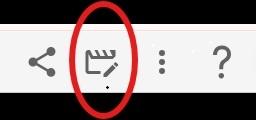
Screenshot of the Panopto toolbar, with a red circle highlighting the pencil-shaped Edit icon
  • Open your Panopto video and click the Edit icon (the pencil in the top-right corner).
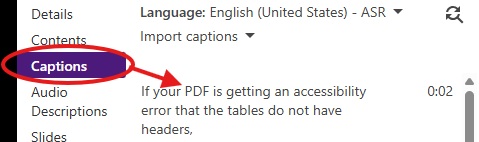
  • Select "Captions" from the left-hand menu.
Screenshot of the Panopto editor menu highlighting the "Captions" option in a red oval.
  • Make your changes directly in the text boxes on the left to fix spelling, punctuation, or speaker labels.
  • Click the purple "Apply" button in the top-right corner to save your changes before closing.

Challenge: Pick one video in your course and review its auto-generated captions. Fix any errors you find.

Need Help with Your Captions?

If you run into technical issues, need help with complex editing, or require additional captioning support, we’re here to assist. You can submit a request through our Media Captioning Request form or email us at captionmymedia@austincc.edu.

Quick Ally Tip

Don't Stop at the Score

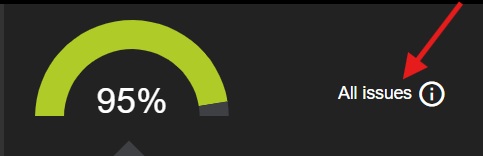
An gauge showing an Ally course accessibility score of 95% next to an 'All issues' button with a red arrow pointing to it.

Even if your Ally score is green, select All Issues to see the complete accessibility report. A strong overall score can still include individual barriers that need attention

How We Can Support You?

Visit the Digital Learning Accessibility webpage  to explore resources or email us at dlstaff@austincc.edu

Use the Ally Accessibility Issue Tracker to report accessibility issues in your courses. Our team will review your submission and follow up as needed.

Our goal is to shift from reactive to proactive measures to cultivate an inclusive learning environment for ALL


For any questions, please contact:

dlstaff@austincc.edu


Notice: Unsubscribing will remove you from all future communications and updates from our office.