The content in this preview is based on the last saved version of your email - any changes made to your email that have not been saved will not be shown in this preview.
ACC Division of Digital Learning logo with a multi-colored star icon

DL Website | DL Fall Newsletter | September 8, 2026

Digital Learning Newsletter banner with colorful geometric patterns on a white background

View as Webpage

Spotlight of the Month graphic with a spotlight shining on a blue star icon.

Color Contrast Captured by All

Reading information on digital screens can be strenuous on the eyes. Appropriate color contrast within learning materials is imperative to ensure documents remain clear and readable for individuals with low vision or color blindness.

Test Your Contrast

Use these free web resources to check your foreground and background text combinations:

Get Your Hex Code:

  • Hex Code Reference Sheet (PDF, 120 KB) – A quick guide explaining what Hex codes are and how to find them in Microsoft Word and Google Docs.


Test Your Contrast Ratio

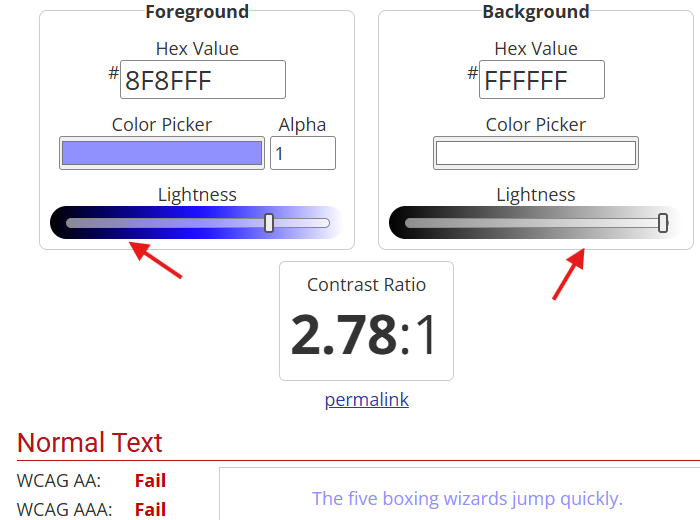
Screenshot of a color contrast tool displaying a failing contrast ratio of 2.78 to 1 for light blue text on a white background.

Source: WebAIM Contrast Checker (webaim.org)

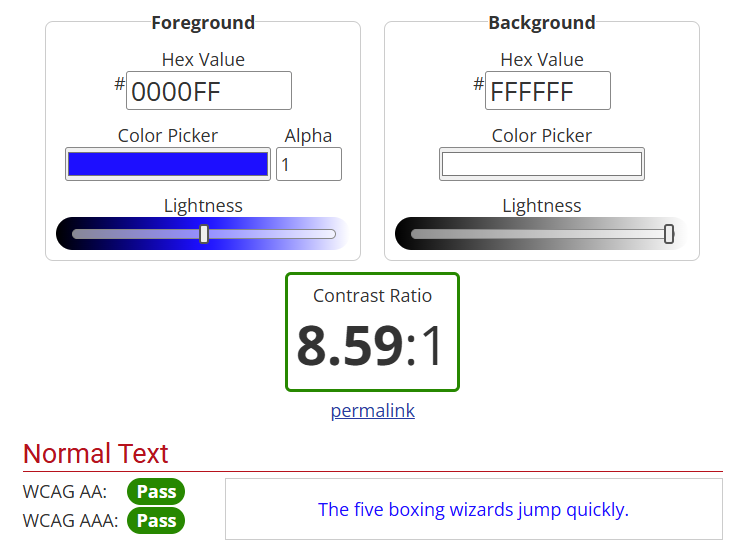
Screenshot of a color contrast checker displaying a passing contrast ratio of 8.59 to 1 for dark blue text on a white background

Source: WebAIM Contrast Checker (webaim.org)

Adjust: Use the sliders to adjust your text or background shade until the ratio hits 4.5:1 (or 3:1 for large text) and the status badges flip to green PASS.

Accessibility Pro Tip: Never rely on color alone to convey meaning (such as using red text to show an error or green for success). Always pair color with text labels or symbols so the information is clear to everyone.

Handling Text Inside Images

  • Check Before Uploading: Text contrast inside images (like infographics or slide graphics) cannot be edited directly inside Blackboard. Verify your colors in PowerPoint, Word, or Photoshop before exporting.
  • Screen Reader Access: Text embedded inside an image cannot be read by screen readers. Always pair images containing text with descriptive Alt Text.

The "3-Fix" Sprint Challenge

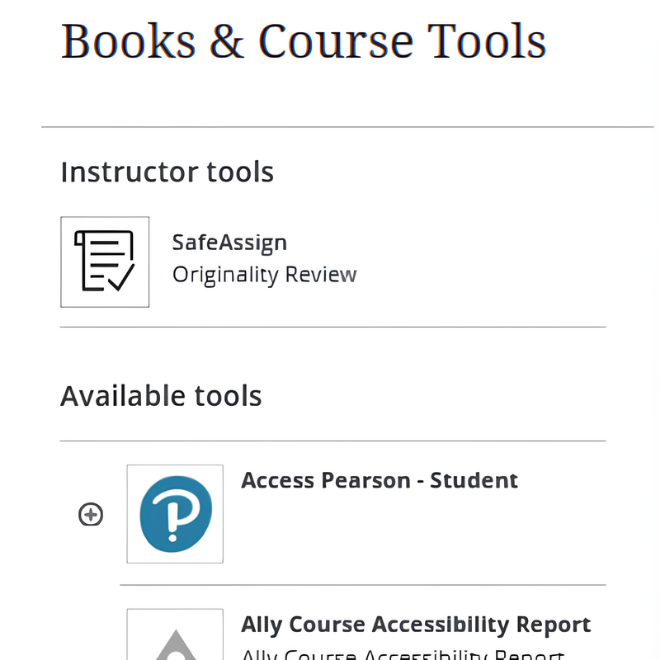
Blackboard Books & Course Tools menu with Ally Course Accessibility Report highlighted.

Set aside 10 minutes this week to boost your course's accessibility score:

  1. Open your Blackboard Ultra course and navigate to Course Tools →Accessibility Report.
  2. Under the issues list, select "The image has contrast issues."
  3. Update at least 3 items - use one of the recommended color contrast checkers to pick accessible colors.


Once you save your changes, click the Ally Dial next to your content to see your score improve in real-time!

Want To See How Your Course Is Doing?

  1. Navigate to Books & Tools under Course Details & Actions on the Course Content page.
  2. Select Accessibility Report.
  3. Check your score and review suggested fixes.

How We Can Support You?

Visit the Digital Learning Accessibility webpage  to explore resources or email us at dlstaff@austincc.edu

Use the Ally Accessibility Issue Tracker to report accessibility issues in your courses. Our team will review your submission and follow up as needed.

Our goal is to shift from reactive to proactive measures to cultivate an inclusive learning environment for ALL

For any questions, please contact:

dlstaff@austincc.edu

Notice: Unsubscribing will remove you from all future communications and updates from our office.